
UNEKOS Gift QR Help
Create a digital surprise and add a photo, a video clip or a personal message to your gift.
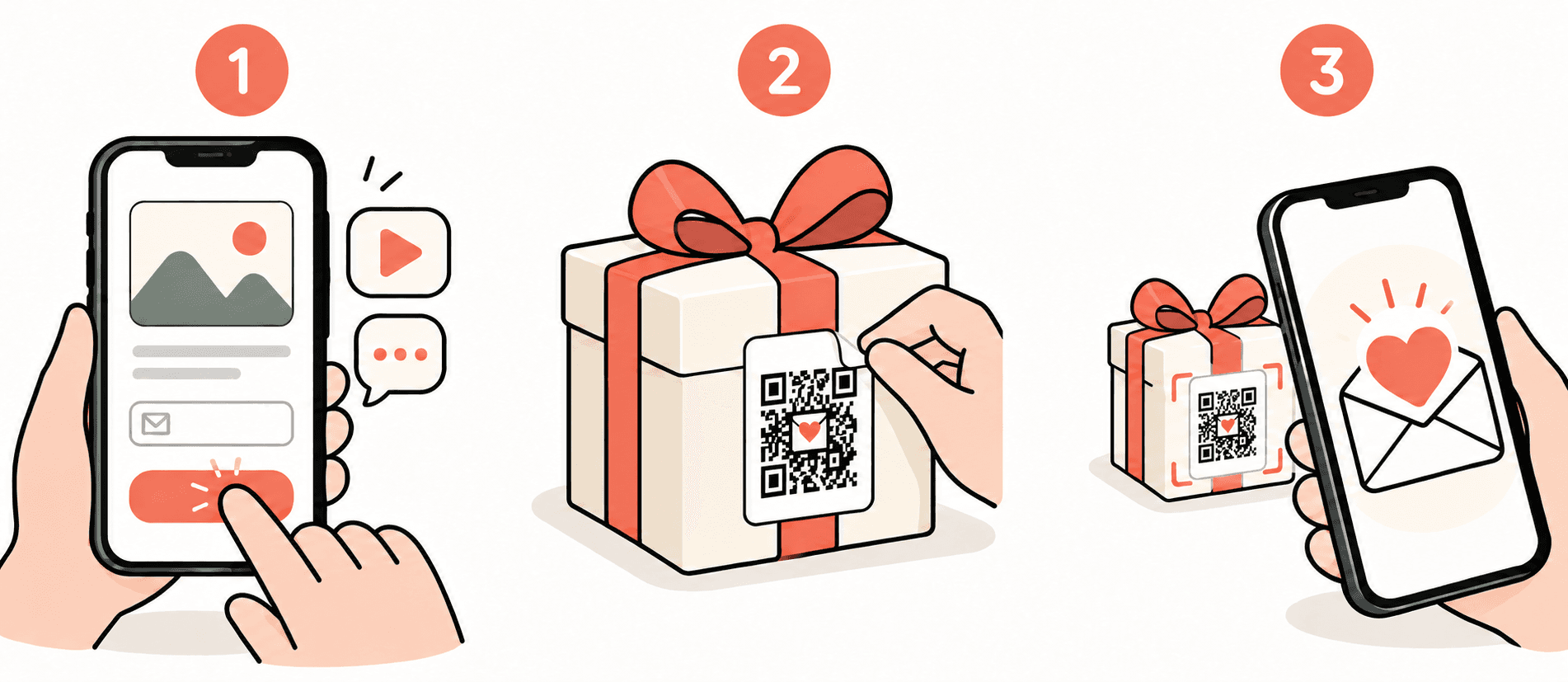
1. Scan and activate your Gift QR
Open your phone’s camera, point it at the QR code and tap the link that appears.
You don’t need to install an app. The content opens in your browser and requires an internet connection.
The first time, you’ll see an activation form. Enter your email and prepare the content you want to share. You can choose:
- A photo.
- A video clip.
- A text message.
- A photo or a video clip accompanied by a message.
You add the content during activation, and it will be shown when the QR link is opened.
If you’re not signed in, you’ll receive a verification code by email. Enter it when prompted to complete activation.
Use an email you can access: it will let you manage your Gift QR later.
2. Prepare and give your gift
Stick the label on the gift, its wrapping or an accompanying card.
Make sure the QR code is fully visible and on a smooth surface so it’s easy to scan.
Before giving the gift, scan it again to check how your surprise will look.
3. Discover the surprise
The person receiving the gift simply scans the QR code with their phone’s camera and taps the link to see the photo, play the video clip or read the message.
The content will be accessible for one year from the label’s first activation.
4. Settings and advanced features (optional)
Open the settings
To manage your Gift QR, you must be signed in with the same email you used to activate it.
When you open it while signed in with that email, a three-dot menu (⋯) will appear, giving you access to its settings.
Protect your gift with a PIN
If you want to keep the content for the person the gift is intended for, you can set a PIN in your Gift QR settings.
The PIN will be required to access the content. Give it to that person so they can open your surprise, and share it only with those you want to have access.
Use your label again
From the settings, you can reset your Uneko and activate it again with new content, using the same email.
Resetting deletes the previous content. The label and its QR code stay the same.
Resetting or activating it again does not extend the availability period, which starts at the first activation.
Add links to your message
If you write a web address (URL) in the message, it will automatically become a clickable link. You can include text and a photo or a video clip alongside it.
For example, you can create an album in Google Photos, enable sharing via a link and paste that link into your message. The person receiving the gift can then access the album from your Gift QR.
Use your QR code to open a web page
If you’d rather have the QR code take people straight to a web page, enter only its URL in the message, without any other text, photo or video clip.
Scanning the QR code and opening the link will automatically redirect to that page.
5. Frequently asked questions
My phone won’t scan the QR code
- Check that you’re using the camera and that the entire QR code is visible on screen.
- Find good lighting and avoid reflections.
- Move your phone slightly closer or further away until it focuses.
- Check that the label isn’t bent, damaged or partially covered.
When the link appears, tap it to open the content.
I haven’t received the verification code
Check that you entered your email correctly and look in your junk or spam folder.
If the message doesn’t arrive, request another code when the screen allows you to.
I can’t upload a photo or a video clip
Check your internet connection and look for any messages about the file format or size.
Follow the on-screen instructions to finish uploading.
Can I add several photos or video clips?
Each Gift QR allows a single photo or a single video clip, which you can accompany with a message. You can also use just a text message.
Can I change the content?
To replace the content or change the destination web address, you can reset your Uneko in the settings and activate it again with the same email.
The previous content is deleted when you reset it.
How long can the content be viewed?
For one year from the label’s first activation. Activating it again with different content does not restart that period.
Contact us
Write to us at support@unekos.com.
Tell us what’s happening and which phone model you use. If an error message appears, attach a screenshot so we can help.