
UNEKOS Memory Frame Help
Set up your frame, add your memories and enjoy them again whenever you like.
1. Set up your frame
Open the frame and insert your photograph
- Hold the frame and gently press the front near one of the long sides towards the back. Hold the back panel too, so it does not fall when it comes loose.
- Keep pressing until the small retaining balls on the back panel come out of their groove. Remove the back panel.
- Place your photograph behind the mount, centred in its opening and facing whichever way you prefer.
- Put the back panel in place again and gently press its edges until the balls fit back into the groove. Check that it is securely seated.
Fit the stand
Insert the support rod into the corresponding hole on the back, depending on whether you want to display the frame horizontally or vertically.
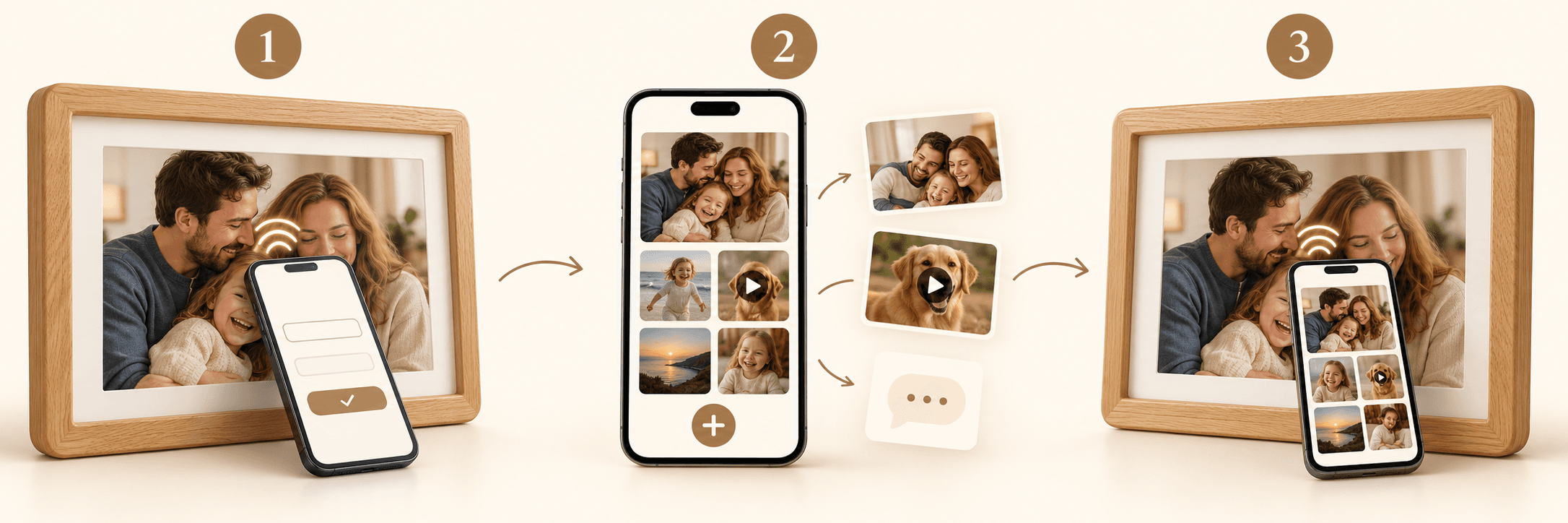
2. Tap your Memory Frame with your phone
Unlock your phone, hold it near the centre of the frame and keep it there for a moment. Tap the notification that appears to open your Memory Frame.
On iPhone
The NFC reading area is at the top of the back of the phone, near the camera. Hold that part near the centre of the frame. On models that support automatic reading, you do not need to enable NFC.
On Android
Check that NFC is enabled in your settings. Depending on the model, the sensor may be at the top or in the middle of the back of the phone. Hold that area near the centre of the frame and move it slowly if it is not detected straight away.
You do not need to install an app. The content opens in your browser and requires an internet connection.
3. Activate your Memory Frame
The first time you open it, you will see an activation form.
Enter your email and follow the steps on screen. If we ask for a verification code, you will receive it by email.
Use an email address you can access: it will allow you to manage your Memory Frame later.
4. Add your memories
Complement your photograph with more photos, short video clips and messages.
Once the frame is activated, use the options to add content and follow the on-screen instructions. You can keep adding new memories over time.
5. Enjoy your memories
Whenever you want to view the content, tap your Memory Frame with your phone and tap the notification.
Explore the photographs, play the short video clips and read the messages that form part of its story.
Other people who tap it with their phones will also be able to view the content.
6. Advanced settings (optional)
Open the settings
To manage your Memory Frame, you must be signed in with the same email address you used to activate it.
When you open it while signed in to that account, a three-dot menu (⋯) will appear, giving you access to its settings.
Close contributions
When you no longer want to receive new memories, you can close contributions. Content that has already been added will remain available to view.
Share with people who are far away
The Link access option lets you create a temporary link for people who do not have the frame in front of them.
This is especially useful if you are preparing the Memory Frame as a gift and want several people to add their photos, short video clips or messages, even when you are not physically together.
Choose its duration, activate it and share the link. You can deactivate it before it expires.
The link allows people to view the content and, if contributions are open, add memories.
Protect access with a PIN
For extra security, you can set a PIN that will be required to access the memories.
Share it with the people you want to grant access to. The PIN will also be required when opening a temporary link.
7. Frequently asked questions
My phone does not detect the frame
- Check that your screen is unlocked.
- Hold your phone’s NFC reading area near the centre of the frame.
- Keep your phone close for a few seconds and move it slowly if necessary.
- On Android, check that NFC is enabled.
- If you use a thick case or one with metal parts, try removing it.
Your phone must support NFC.
Do I need to use the camera?
No. Hold your phone near the centre of the frame and tap the notification that appears. You do not need to open the camera or scan an image.
I am not receiving the verification code
Check that you have entered your email correctly and look in your junk or spam folder.
If the message does not arrive, request another code when the screen allows you to do so.
I cannot add a photo or a short video clip
Check your internet connection and look for any messages about the file format or size.
Contributions may be closed. If they are open, follow the on-screen steps to add your memory.
Can I change the printed photograph?
Yes. You can change the photograph in the frame without changing the digital memories you have saved.
Are my memories protected?
Your Memory Frame includes physical-access protection, designed to open memories when you tap the frame with your phone and to limit access through a copied address.
For extra security, you can set a PIN, which will be required to access the content.
If you activate a temporary link, you allow access without tapping the frame while the link is active. If you have set a PIN, it will also be required when using that link.
Share the link and PIN only with people you trust. Remember that anyone who can view content can also take a screenshot or copy it.
What happens if someone forwards my temporary link?
Anyone who receives the link can also use it while it is active. If the frame has a PIN, they will need to know it.
You can deactivate the link in the settings to prevent new access through it.
Contact us
Write to us at support@unekos.com.
Tell us what is happening and which phone model you use. If an error message appears, attach a screenshot so we can help you.